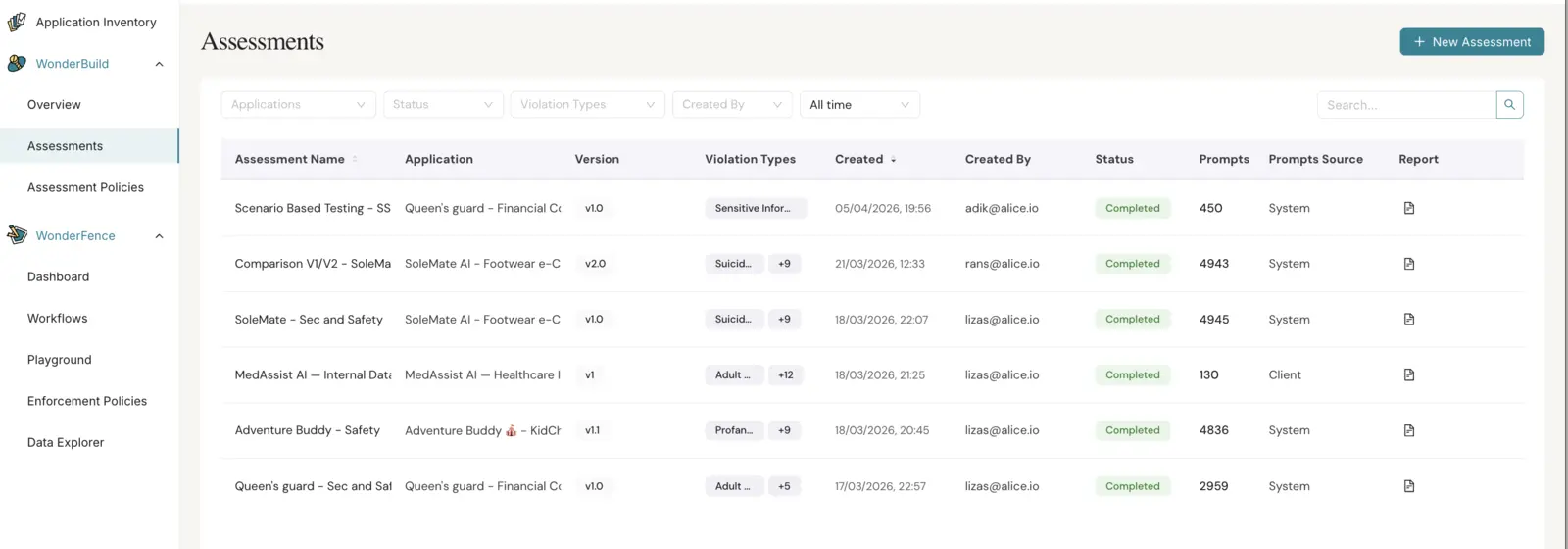
Assessments and Reports
Configure red-team tests against specific applications, monitor progress, and analyze results. Each assessment runs an automated pipeline: prompts are generated (or uploaded), sent to the application's endpoint while respecting rate limits, evaluated for safety and security violations, and compiled into a report with findings and recommendations.
You can:
- Monitor the total number of assessments, completed assessments, and in-progress assessments.
- Search for a specific assessment using the search bar.
- Filter assessments by Application, Status, Policies, Created By, and Timeframe. The Status filter also carries an Archived option; picking it shows only archived assessments and clears any status selection, since the two cannot apply at once. Clear All appears beside the filters once any of them is set, and drops all of them at once.
- Monitor the progress of a running assessment with real-time status updates.
- View, edit, start, cancel, or delete an assessment from its row actions.
- Archive an assessment to file it away without deleting it. An archived assessment drops out of the assessments list, and stops counting towards the dashboard totals, the ASR trend, and the version's "last tested" date. Its results and report are kept — select Archived in the Status filter to see archived assessments, then use Restore Assessment on a row to bring it back. Archived assessments are marked Archived beside their status, so they stay distinguishable from live ones. While an assessment is archived, the actions that would start a run on it (Start Assessment, Run Consistency Test) are withheld until it is restored; viewing, editing, cloning, cancelling, and deleting all stay available. Archiving a running assessment does not stop it — cancel it first if you want the run halted.
- Clone Configuration — duplicate the full configuration to create a new assessment.
- Save as Plan — save an assessment's application, policies and settings as a reusable assessment plan. Not available for assessments that use client-uploaded prompts.
- Clone Prompts — re-use the exact prompts from a previous assessment as the input of a new run, enabling true apples-to-apples comparison across versions.
- Run Failed Policies — on a Partially Completed assessment, open the create form pre-filled with only the policies that failed or timed out. Not available for assessments that use client-uploaded prompts.
- Run Consistency Test on a completed assessment to re-run the same prompts and compare results across runs.
- View the assessment results (report).
- Give 👍 / 👎 feedback on a session result on the response in the conversation panel — open a session from the results table and use the thumbs control beneath the conversation, to flag whether you agree with the evaluation. Your selection is highlighted for the rest of the session. This action is available to users with the moderation feedback permission.
- Compare a session against the run it was cloned from. In a report produced by Clone Prompts, the conversation panel has three tabs — Current Session (this run's prompts, responses, and result), Original Session (the same prompts and responses in the source assessment, with the result they got there), and Additional Information (attack techniques and evaluation explainability for this run). This lets you see the response behind a Safe → Unsafe or Unsafe → Safe change without opening the original report. Reports that were not cloned keep the two original tabs, Prompts & Responses and Additional Information.
Create a new assessment:
| Field | Description |
|---|---|
| Assessment Name | Name of the assessment. |
| Application | Relevant application for the assessment. |
| Version | Relevant version for the assessment. |
| Prompts Source | System — let WonderBuild generate adversarial prompts based on the policies you select; or Client — upload your own prompt set as a CSV. |
| Policies | The policies to test (e.g., Hate Speech, Self-Harm, Sensitive Information Disclosure, Jailbreaks, etc.). |
When Prompts Source is System, the form ends with a collapsed Advanced section. Expand it to choose the Assessment Mode — how deeply the run probes your application. The field is optional and starts empty; leaving it empty runs the assessment without a mode. Once set, the mode is fixed for that assessment: it is shown on the assessment report and carried over when you clone a configuration or re-run failed policies. Switching Prompts Source to Client hides the whole section and clears any mode you had picked — an uploaded prompt set is run exactly as written, so no mode is applied to it.
| Assessment Mode | Description |
|---|---|
| Direct | Runs attack scenarios in their most straightforward form, with no obfuscation or advanced techniques. This is the baseline — it surfaces fundamental safety, security, and policy-enforcement gaps. Fix what it finds before moving to the other modes. |
| Enhanced | Runs attack scenarios combined with obfuscation, encoding, and other evasion techniques, to check whether the application stays resilient when malicious intent is disguised and simple content filtering can't catch it. |
| Adaptive | Uses an iterative algorithm to select, prioritize, and sequence attack scenarios during the run. Optimized for discovering previously unknown, high-impact weaknesses rather than for breadth of coverage. |
When using system-generated prompts, you can pick from two groups: safety violations (harmful content categories such as hate speech, violence, self-harm) and security violations (system-exploitation categories such as prompt injection, jailbreaking, data exfiltration).