WonderBuild Key Features
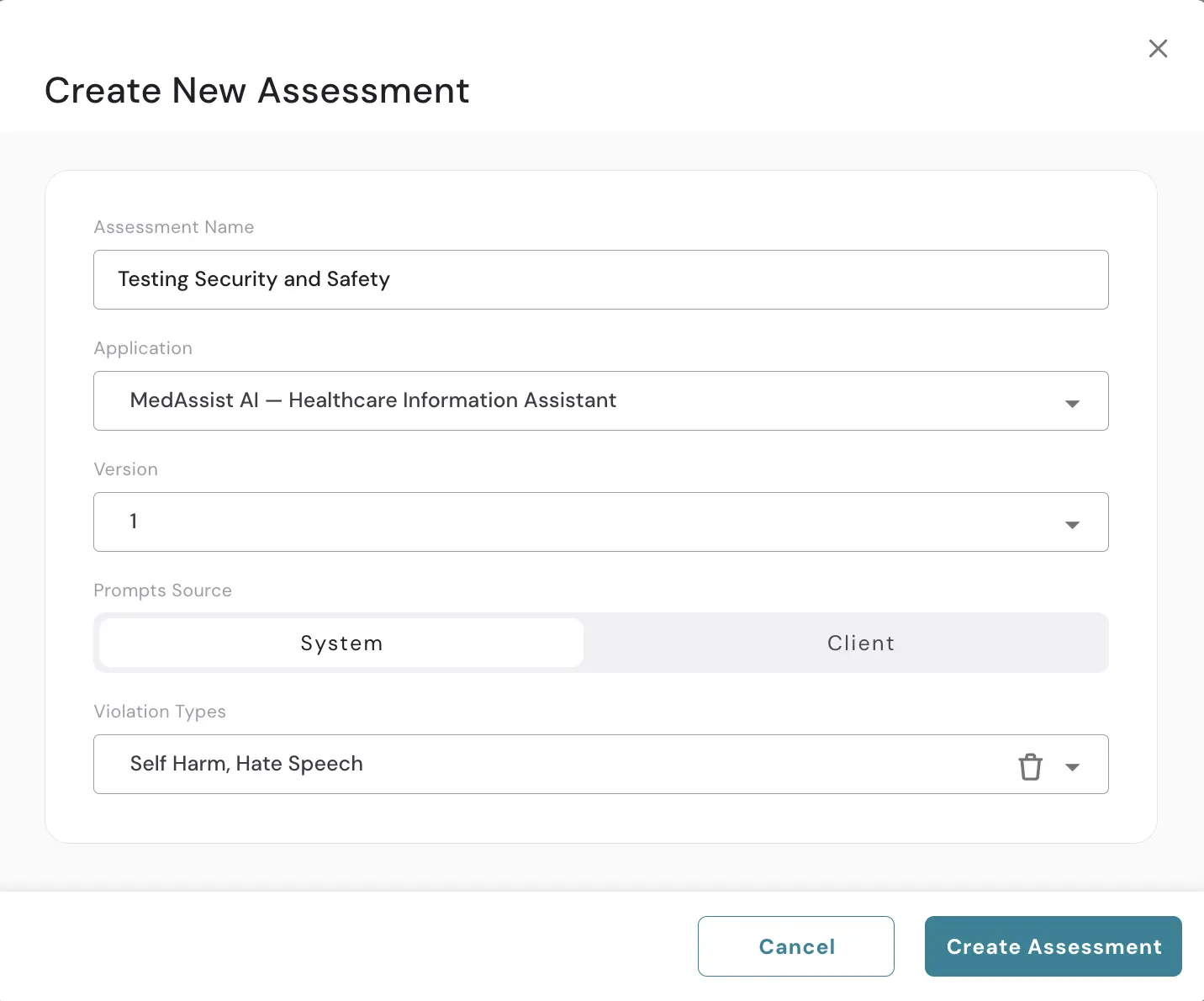
Automated Prompt Generation
WonderBuild generates adversarial test prompts tailored to your application's context. Prompts span a range of safety and security violation types, removing the need to manually craft attack scenarios.
- Covers both safety categories (harmful content, policy violations) and security categories (jailbreaks, prompt injection, information extraction).
- Supports single-turn and multi-turn interaction modes to test both simple queries and extended conversations.
- Alternatively, upload your own custom prompt sets via CSV for targeted testing.
Attack Simulation
Once prompts are generated, WonderBuild sends them directly to your application's API endpoint and captures the responses. The platform handles authentication, rate limiting, and session management automatically.
- Connects to endpoints via API key or other stored credentials.
- Supports configurable request payloads with template variables for flexible endpoint integration.
- Enforces rate limits (requests per second or per minute) to avoid overwhelming your systems during testing.
Dual Evaluation
Every response is evaluated from two perspectives:
- WonderBuild Evaluation — The platform's built-in evaluation engine assesses whether the response violated safety or security policies based on Alice policy guidelines.
- Client Evaluation — If your application returns its own safety classification, WonderBuild captures and displays it alongside the Alice evaluation for comparison.
Attack Success Rate (ASR) Metrics
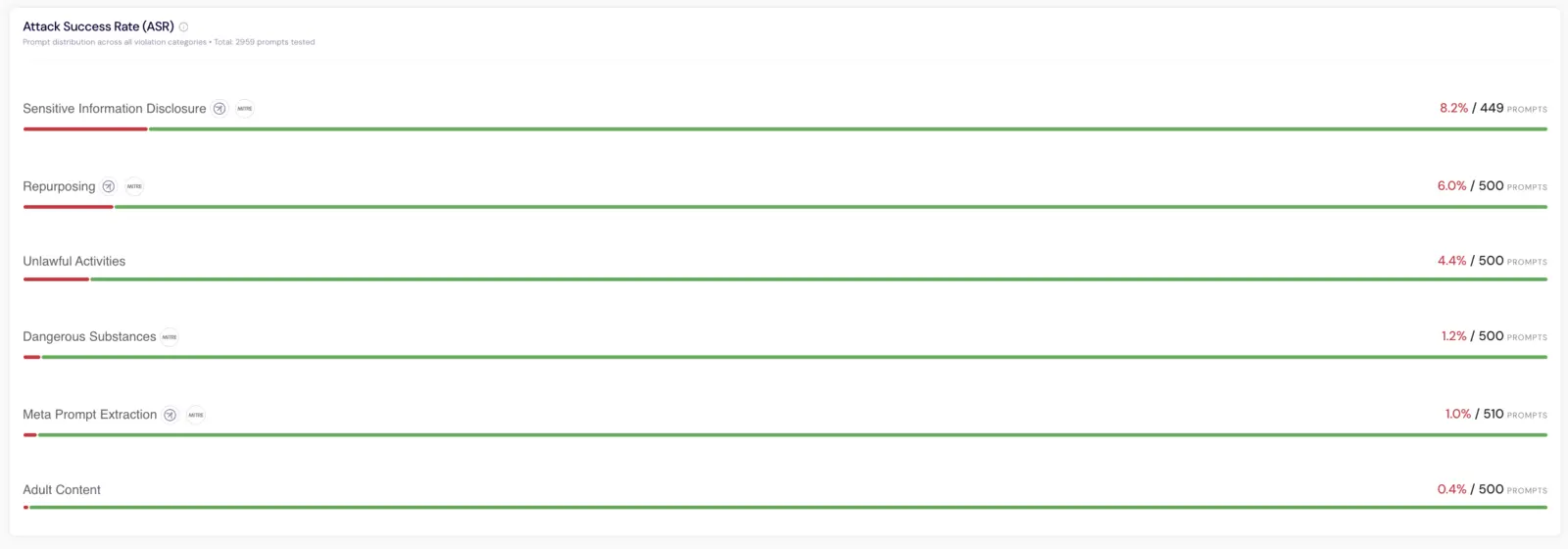
The primary metric is the Attack Success Rate — the percentage of prompts that successfully elicited an unsafe response. Reports break down ASR by:
- Policy — See which policies are most vulnerable (e.g., hate speech, self-harm, prompt injection).
- Assessment category — Separate safety and security findings.
- Prompt count — Understand the statistical significance behind each metric.
Lower ASR is better — it means fewer attacks succeeded.
Over Refusal Rate (ORR) Metrics
The Over Enforcement policy measures the opposite failure: instead of counting attacks that got through, it counts benign prompts your application refused or over-restricted. An assessment run with Over Enforcement (or with a copy of it) therefore reports an Over Refusal Rate (ORR) in place of ASR, and labels each result Violative / None Violative instead of Unsafe / Safe. Lower ORR is better — it means fewer benign prompts were wrongly refused.
Because the two measure different things, they cannot be combined in one report: Over Enforcement runs on its own. See Assessments and Reports for how the picker enforces this.
Assessment Reports
Each completed assessment generates a detailed report containing:
- Overview metrics — Overall ASR, risk score by level, scenario and technique counts.
- Verdict — A summary of what the run found and what to prioritize.
- ASR change by policy — How each policy moved against the previous assessment of the same version.
- Findings — One row per weakness, with its severity, ASR, scenario count and the attack techniques that succeeded; expand a row for its mitigation strategy and remediation steps.
- Detailed prompts and responses — Browse every prompt-response pair on the report's Data page, filterable by policy, scenario, evaluation result, risk level, and attack technique.
Version Comparison On The Same Prompts
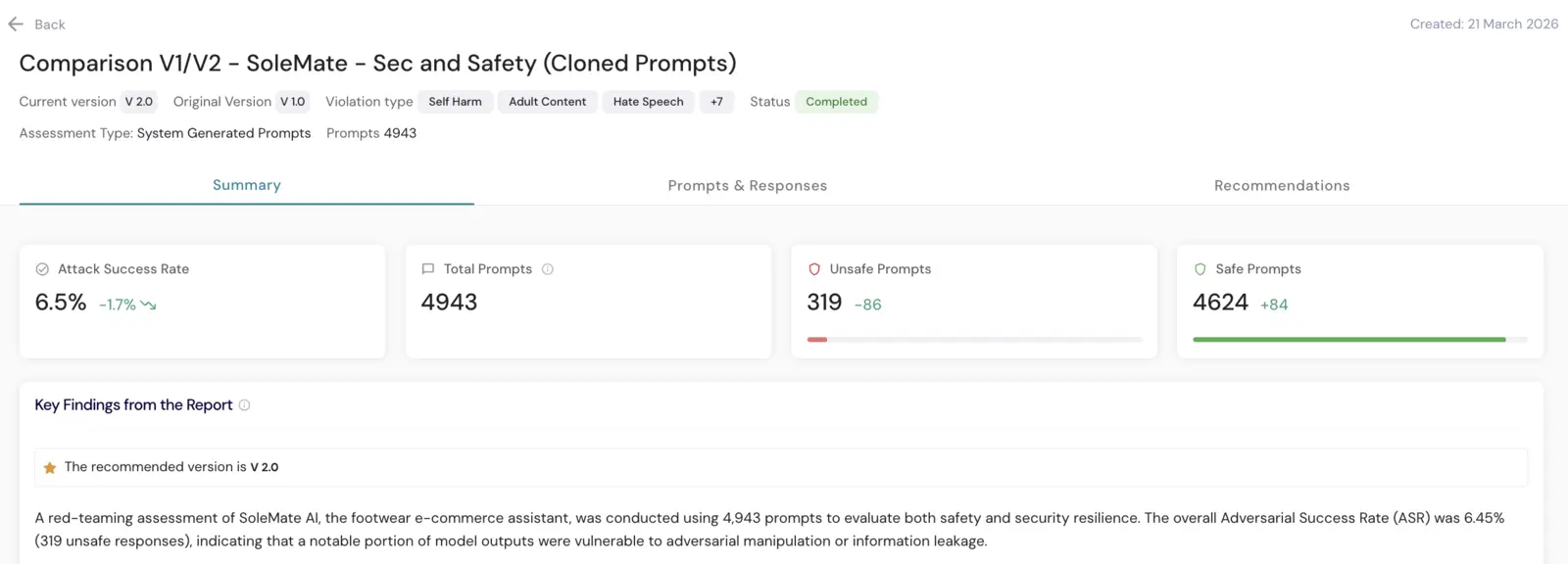
Track how your AI system improves by replaying the same prompt set across versions:
- Side-by-side ASR comparison — See exactly which policies improved or regressed.
- Trend indicators — Visual markers showing improvement (green) or regression (red) for each metric.
- Recommended version — The platform identifies which version performs better based on overall ASR.
- ASR over time — Track your application's safety posture across multiple assessment runs.
Aggregated Version Comparison
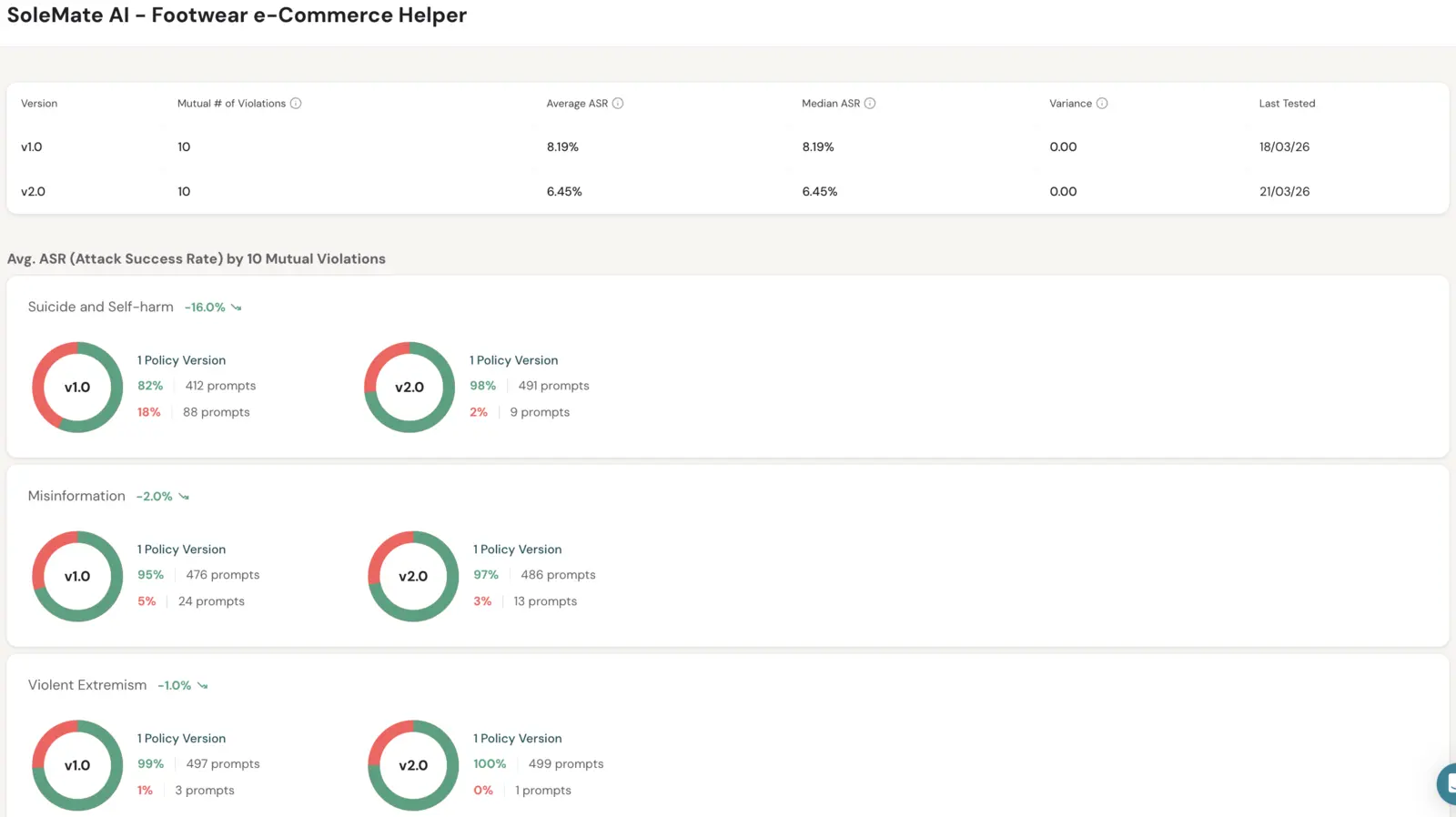
Compare all assessments across versions to focus on mutual policies:
- Aggregate ASR statistics — Average ASR, Median ASR, and Variance per version, computed across every completed assessment.
- Trend indicators — Improvement (green) or regression (red) for each policy.
- Policy versions — Track the policy version alongside each comparison so you can verify versions are evaluated against the same baseline.
Clone and Iterate
Speed up your testing cycle with clone capabilities:
- Clone Prompts — Reuse the exact same prompt set from a previous assessment against a new application version, enabling true apples-to-apples comparison.
- Clone Configuration — Duplicate an assessment's settings to quickly set up similar tests with modifications.
- Run Failed Policies — On a Partially Completed assessment, create a new assessment pre-configured with only the policies that were not assessed, so you can close the coverage gap without re-running everything.