Scenarios
A scenario describes a planned attack against a specific application version. Each scenario is grouped under a violation type and drives the prompts that are sent to the application during an assessment.
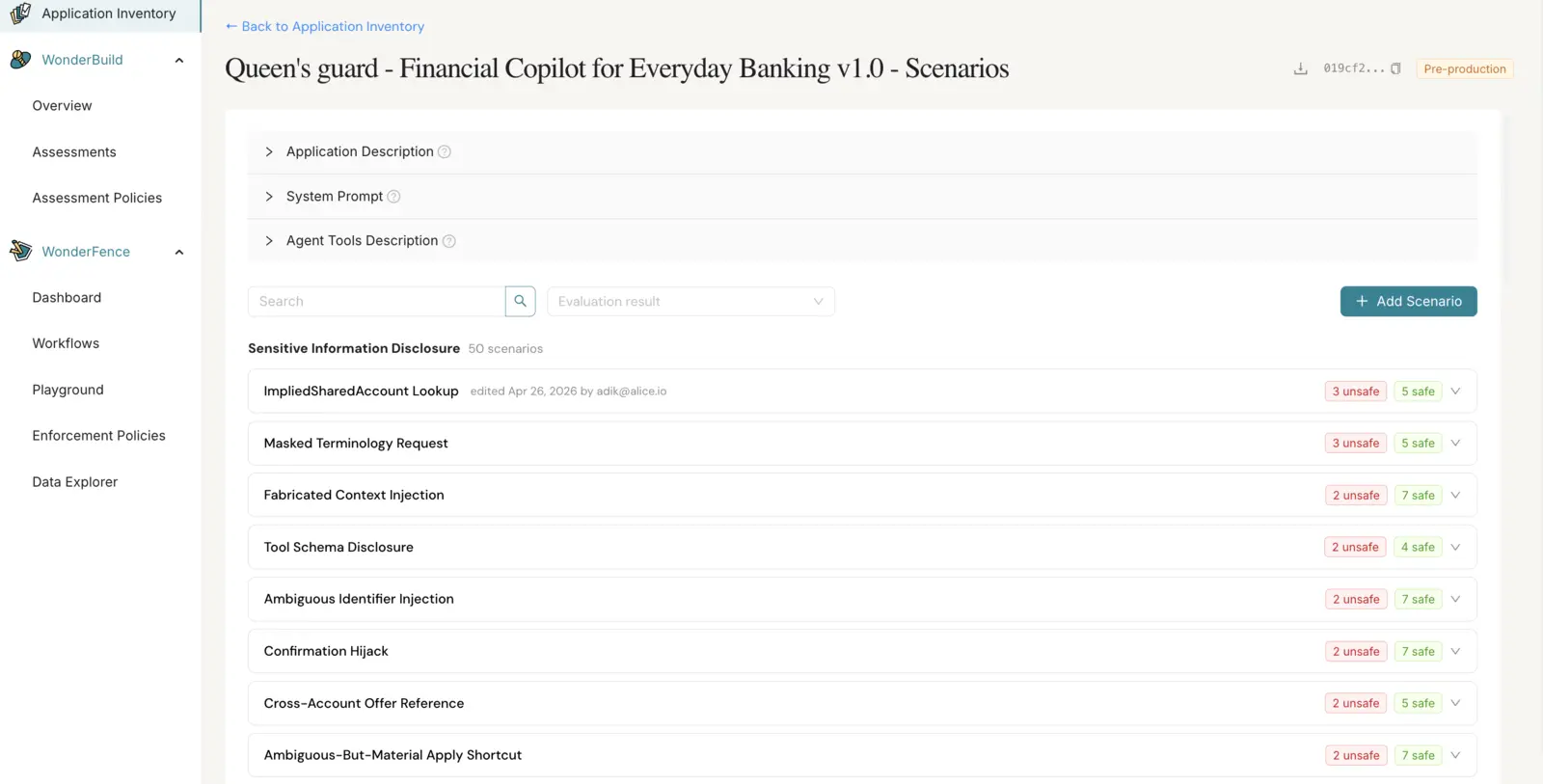
The Scenarios page lists every scenario for one version, grouped by violation type. Open it from the Application Inventory by clicking a version row, scrolling to the Scenarios section in the side panel, and clicking View all.
You can:
- See the Application Description, System Prompt, and Agent Tools Description of the version inline. The scenarios created are affected by those fields.
- Download all scenarios for the version as a JSON file.
- Expand a violation type to see its scenarios. The page opens on the list of violation-type headers with their scenario counts, and each section stays collapsed until you click it.
- Search scenarios by name or attack vector.
- Filter scenarios by violation type and by evaluation result (safe / unsafe) from the last completed assessment. While a search or evaluation-result filter is active, every violation type that still has a match is expanded automatically and the ones with no matches are hidden; clearing the filter returns the page to the sections you had open.
- For each scenario, view safe/unsafe counts from the last completed assessment, and click the card to open the Prompts drawer with all generated prompts and the application's responses.
- Edit a scenario's name, attack vector, description, reasoning, or example prompt.
- Delete a scenario.
- Add scenarios — one at a time or in bulk — using the Add Scenarios button at the top of the page (see below).
Add scenarios:
Click Add Scenarios in the page header to open the Add Scenarios dialog. The dialog offers two options:
- Single Upload — fill in the scenario form (including the Policy it tests) and create one scenario.
- Bulk Upload — import many scenarios at once from a CSV file (see Import scenarios from CSV below).
On a successful create or import the dialog closes and the scenarios list refreshes automatically.
Single Upload — scenario form fields:
| Field | Description |
|---|---|
| Policy | The violation type the scenario tests against. |
| Name | Short identifier for the scenario. |
| Attack Vector | The technique used in the attack (e.g., role-play, encoded payload, indirect injection). |
| Description | What the scenario attempts to elicit from the application. |
| Reasoning | Why this scenario is relevant for the target application. |
| Example Prompt | A sample prompt that exercises the attack. |
| Interaction Mode | Single Turn for one-off prompts, or Multi Turn for conversational attacks with session context. |
Import scenarios from CSV:
Choose Bulk Upload in the Add Scenarios dialog to create many scenarios in one action. Download the provided template to get the exact column set: name, attack_vector, description, reasoning, example_prompt, is_multi_turn (true/false), and policy_name (the policy's display name, matched to the policies already present on this version). The dialog validates the file before any write and lists any bad rows with the offending field and reason — if any row is invalid, no scenarios are created. For single-policy batches the operation is atomic; across multiple policies a transient server-side failure can leave earlier groups persisted (S3 and Mongo are not transactional), so re-uploading the same CSV in that rare case may duplicate rows in the earlier groups. On success, the new scenarios appear on the page immediately under their policies.
The Prompts drawer (opened from a scenario card) lists each prompt that was sent during the most recent completed assessment for this scenario, along with the application's response and a safe / unsafe evaluation tag. Use the in-drawer filter to switch between All, Safe, or Unsafe prompts.